Video creation

Use the fal ai video generator for better clips

A fal ai video generator can turn a written scene or reference image into a short moving sequence. This guide shows how to choose an input, run a generation, compare options, and troubleshoot the result.

Free to start · no signup
Abstract visual representing AI video generation

Prerequisites

Prepare the creative inputs and decisions that make a generation easier to evaluate before you spend time iterating.

Short-form creator

Start with a concise prompt describing the subject, action, camera movement, lighting, and mood. Keep the first request focused on one clear shot.

You get a clip that is easier to judge and revise. For a broader capability map, see what can fal ai do, which explains where video fits among other tasks.

what can fal ai do
Product marketer

Use a clean product image or a carefully framed reference as the visual starting point, then describe the motion you want around it.

The output can become a fast concept for a launch page, social post, or internal review. fal models helps explain which model families may suit image-led work.

fal models

Storyboard artist

Break a larger idea into separate shots instead of asking for a complete sequence in one prompt. Define continuity details such as wardrobe, location, and time of day.

Each clip has a clearer job in the storyboard, making successful takes easier to assemble during editing. The general guide to what can fal ai do offers more context on adjacent creative workflows.

what can fal ai do

Prototype developer

Choose whether the first test should use text-to-video or image-to-video, then decide on aspect ratio, duration, and an acceptable level of visual variation.

You can compare outputs against a defined test rather than judging them only by novelty. fal models is useful when you need to inspect available model approaches before choosing one.

fal models

One full run-through

The simplest reliable workflow is to create one test shot, inspect its weaknesses, and change one variable at a time.

  1. 1

    Write a shot brief

    Describe the main subject first, then add the action, setting, camera behavior, lighting, and visual style. Avoid packing multiple scenes into one request.

  2. 2

    Generate and inspect

    Submit the prompt or reference image and review the clip for motion, subject identity, framing, timing, and unwanted objects. Save the prompt with the result so comparisons stay meaningful.

  3. 3

    Refine one variable

    Change only the weakest part of the request: simplify the action, strengthen the camera instruction, replace the reference, or adjust the model and output settings. Run the revised version and compare it with the first take.

Options table

Text and image inputs solve different creative problems. The right choice depends on whether invention or visual continuity matters more.

1

Starting input

Text-to-video

A written description of the scene

Image-to-video

A supplied image plus a motion direction

2

Best for

Text-to-video

Exploring new concepts and environments

Image-to-video

Animating a product frame, character pose, or illustration

3

Visual control

Text-to-video

Lower control over exact appearance

Image-to-video

More control over the opening composition

4

Prompt emphasis

Text-to-video

Subject, setting, action, camera, and style

Image-to-video

Movement, timing, camera path, and preserved details

5

Main risk

Text-to-video

The model may invent details you did not specify

Image-to-video

The source image may not support the requested motion

6

Good first test

Text-to-video

One subject performing one visible action

Image-to-video

A subtle camera move or simple subject motion

7

Iteration strategy

Text-to-video

Clarify the scene and remove competing instructions

Image-to-video

Improve the reference and reduce aggressive movement

What fails

Video generation is useful for exploration, but it does not guarantee a production-ready take on the first attempt.

  • Long, multi-scene stories

    A single generation may lose continuity when the prompt asks for several locations, actions, or camera setups.

    WorkaroundCreate short shots separately and maintain a written continuity sheet for recurring details.

  • Perfect character or product identity

    Faces, logos, hands, text, and fine product geometry can drift between frames or across different takes.

    WorkaroundUse a strong reference image, simplify motion, and treat the output as a draft for review rather than final artwork.

  • Exact choreography

    Detailed timing and interactions between multiple subjects are difficult to control from prose alone.

    WorkaroundDescribe one dominant action, use fewer subjects, and iterate with small changes instead of adding more instructions.

  • Guaranteed clean text in scenes

    Signs, labels, captions, and interface elements may appear distorted or inconsistent in generated footage.

    WorkaroundAdd readable text during editing or compositing after the motion has been approved.

Before and after

A useful comparison starts with a clear input and ends with a clip whose motion supports the original idea.

  • Input brief
  • Generated clip

Compare the subject, motion, framing, and unwanted changes—not just the visual style.

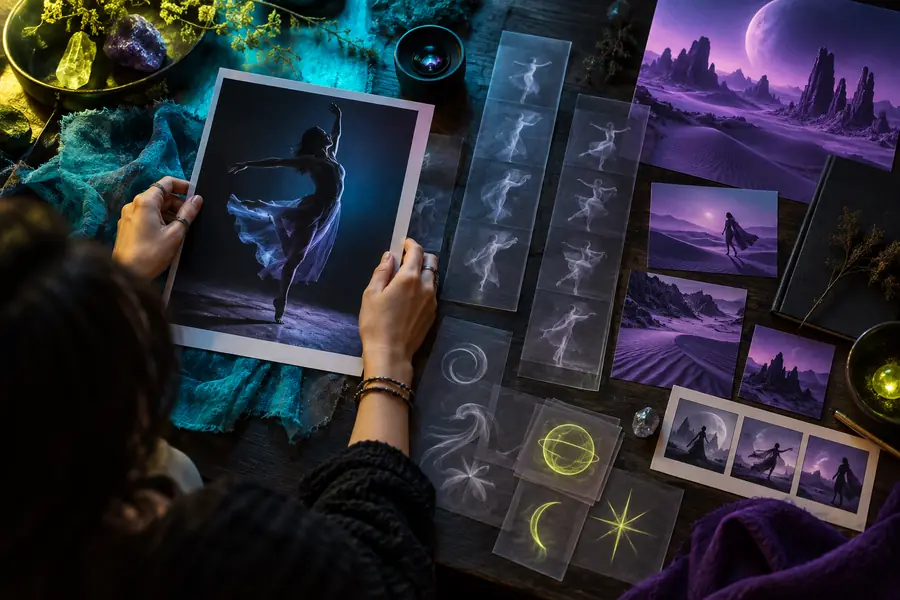
Prompt and reference setup for an AI video
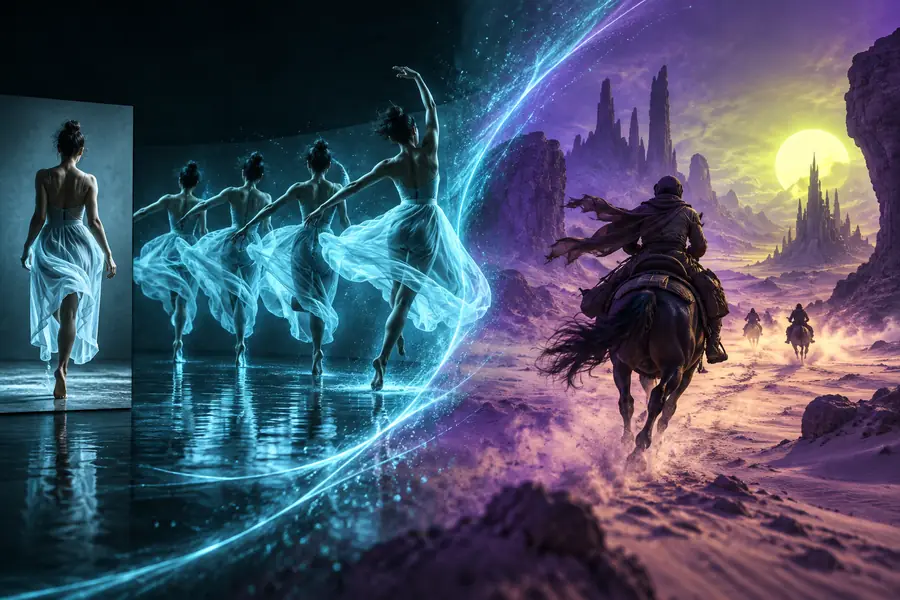
Generated cinematic video scene

Turn a prompt into a clip

When the brief is specific and the first test is small, Fal gives you a practical starting point for exploring generated video. Bring a scene idea, reference image, or product concept and use the first output to guide the next revision.

Generate a video
  • Start with one focused shot
  • Compare text and image inputs
  • Refine motion before adding complexity

FAQ

It creates short video clips from a written prompt, an image, or a combination of both, depending on the selected model. People commonly use it for concepting, storyboards, product motion tests, and social video drafts.

Yes, image-to-video workflows are designed to add movement to a supplied visual. Describe the desired camera move or subject action clearly, and expect to refine the result when the source image contains small details or text.

Name one main subject and one main action, then add the setting, camera movement, lighting, and style. Short, concrete shot descriptions are usually easier to evaluate than prompts that combine several scenes.

Instability can come from complex motion, conflicting instructions, weak references, or too many subjects changing at once. Simplify the action, reduce the camera movement, strengthen the reference image, or test another model option.

Readable text is often unreliable in generated footage, especially when the camera moves or the lettering is small. Plan to add important labels, captions, and interface text during editing after the visual take is approved.

Start creating
Start creating